What usually goes wrong without it
Anyone can order anything, from stationery to raw materials. The procurement manager cannot control which department buys which category or who approves it.
Vendor quotes arrive by email and chat, each in a different format. When you need to justify why a vendor was chosen, there is no complete comparison file left.
Quantity-break price lists and framework contracts sit in each buyer's own files. New orders still go out at old prices or to vendors whose contract has ended.
With no on-time delivery or cycle-time data, which vendor gets more orders depends on the buyer's impression.
7 steps, one chain of documents
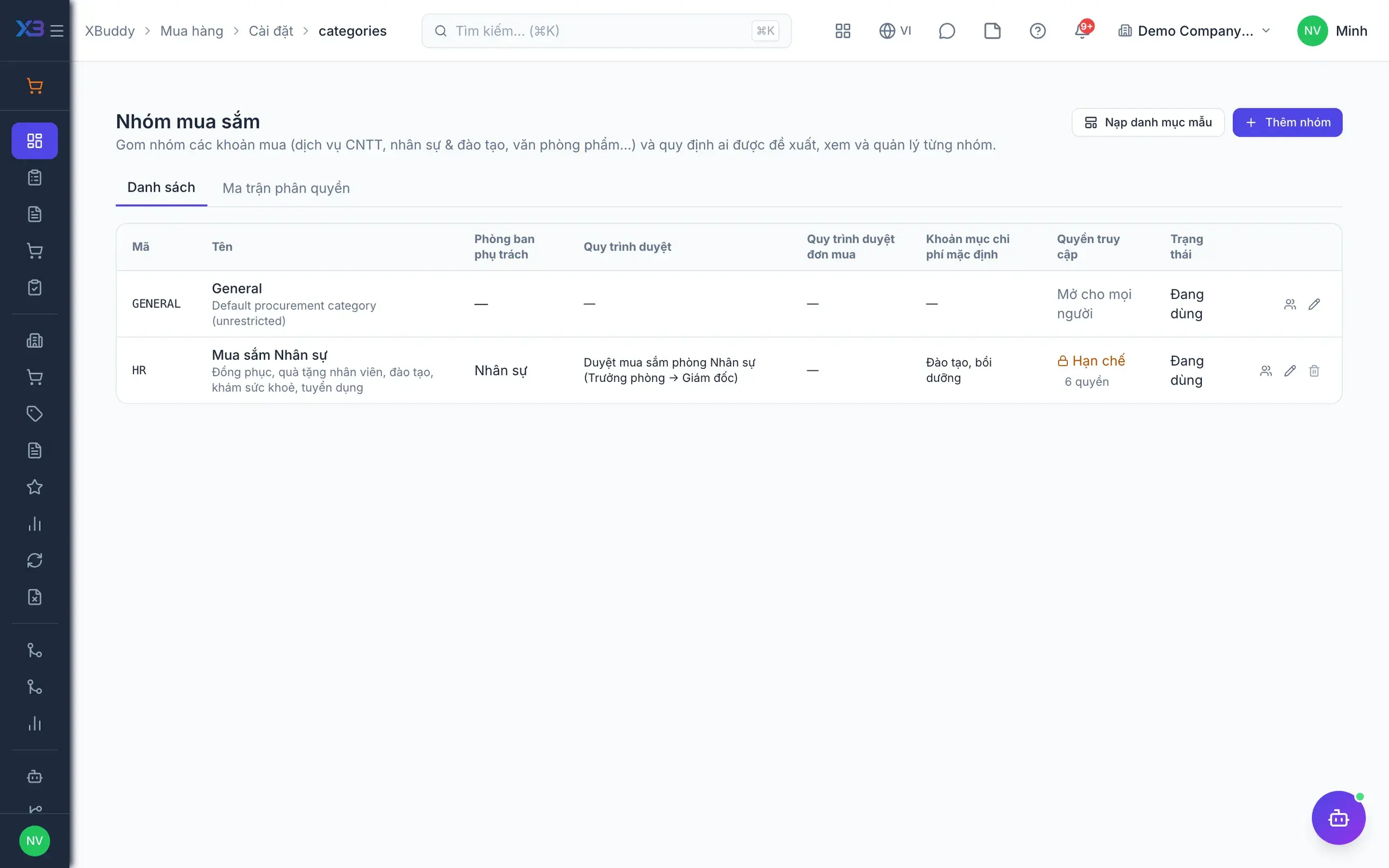
- 1Set up purchase categoriesThe procurement manager turns on purchase categories, creates them manually or from a template, and picks an approval process and expense group for each. An access matrix decides which department can see and buy each category; PRs, RFQs, POs, receipts, bills and returns are filtered accordingly.
- Categories from templates or built by hand
- Grant access to departments, not one person at a time
- Purchase documents filtered by category plus data scope
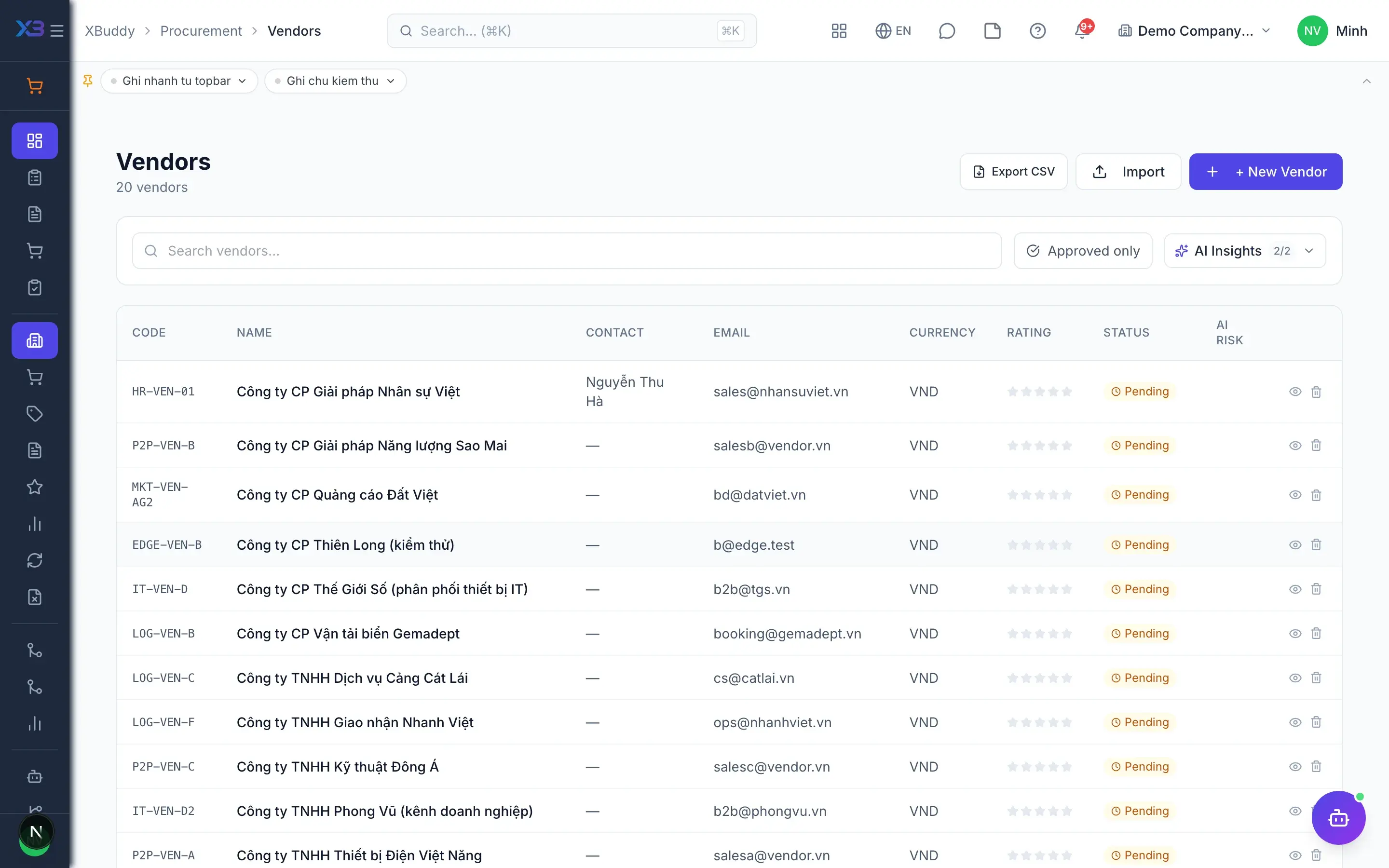
- 2Vendor records, price lists, contractsA central vendor directory holds every profile, with CSV import and export. Quantity-break purchase price lists are looked up when PO lines are entered; vendor contracts can be activated and terminated, and preferred vendors steer requisitions and RFQs to the best supplier.
- Quantity-break price lists
- Vendor contracts with activate and terminate
- Optionally require an active contract before PO approval
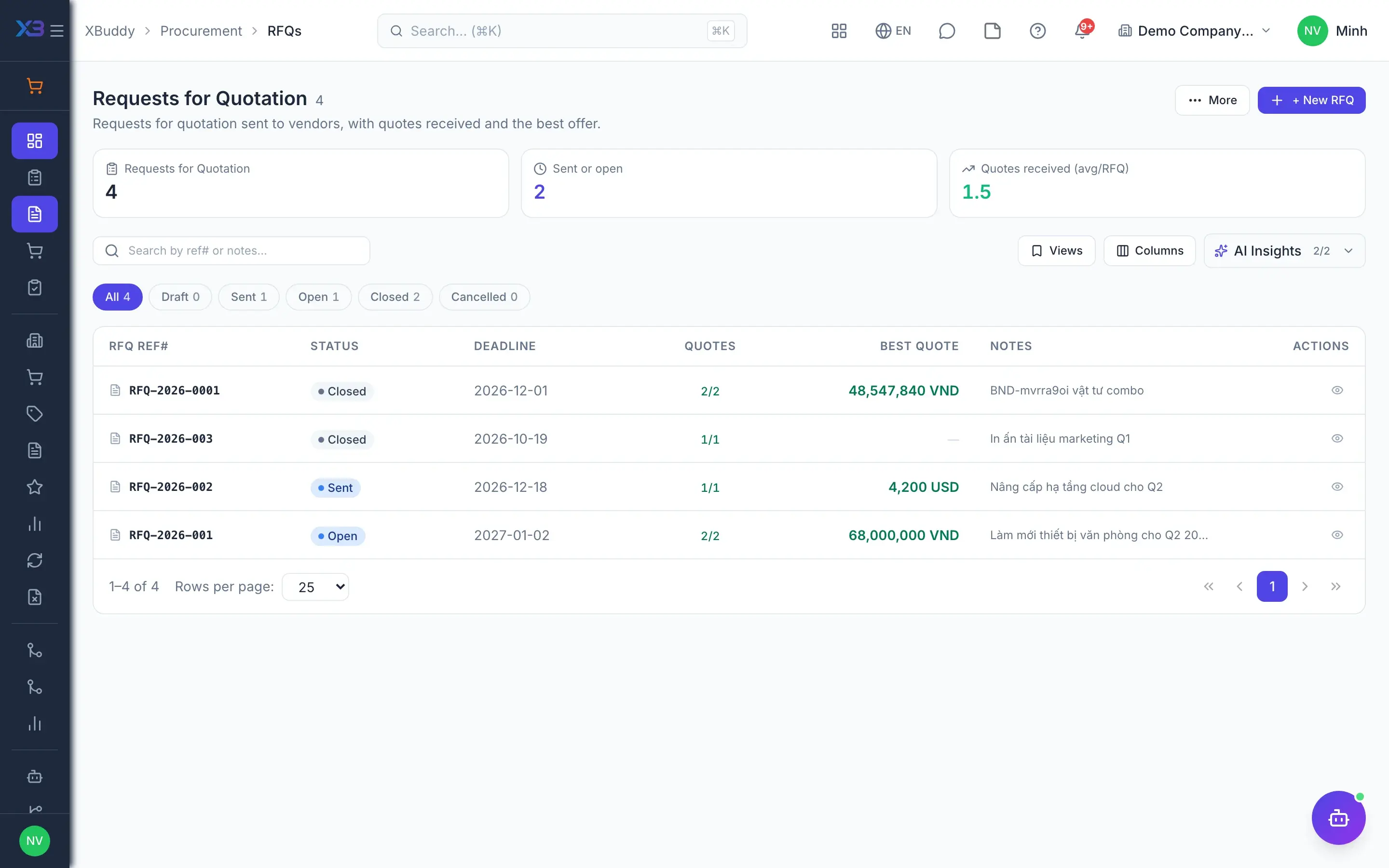
- 3Request quotes through the portalFrom an approved requisition, the buyer creates an RFQ and invites several vendors. Vendors open a tokenized link to submit quotes without an account; quotes can be required to carry an attachment, and expired or duplicate quotes are rejected.
- Vendors quote via the portal, no account needed
- Quote attachment required by configuration
- Each RFQ line can be awarded only once
- 4Score and awardQuotes are scored and compared side by side on price and lead time, and the system can recommend an award. Vendor selection goes through approval; the winning quote becomes a Purchase Order and the rest are recorded as awarded to another vendor.
- Compare price, lead time and terms
- Award recommendation with a vendor-selection approval
- Optionally create a vendor contract from the award
- 5Approve by category and thresholdPurchasing approval chains route by amount threshold and by purchase category. POs can require approval before release, the company can require every PO to come from a PR or an RFQ, and approval status stays in sync with the shared approvals inbox.
- PO amount threshold that needs approval
- Require a PR or RFQ before a PO by configuration
- One inbox shared with other request types
- 6Vendor scorecardsThe company defines its own vendor scoring criteria. Scorecards rate each vendor against those criteria and compare several vendors side by side, giving a basis for the next price negotiation or order allocation.
- Scoring criteria configured by the company
- Compare several vendors next to each other
- Deactivate vendors instead of deleting history
- 7Spend analysisProcurement reports show the manager spend, cycle time from requisition to purchase order, and on-time delivery. Figures come straight from posted purchase documents, with no need to consolidate each buyer's spreadsheet.
- Spend by vendor
- Purchasing cycle time
- On-time delivery rate
Every step is a familiar screen
6 real scenarios with how-tos
3 apps in this solution
Assistants that work the process with you
PO Assistant
Process-aware agent tracking purchase order lifecycle and proposing timely approval or vendor follow-up actions
Contract Lifecycle Assistant
Contract lifecycle assistant — tracks contracts and service contracts across their lifecycle: renewal risk, expiry, clause and NDA screening, signature chasing and document compliance.
Approvals Steward
Monitors approval queues, enforces SLA, analyzes rejections, and routes escalations to available approvers.
Detailed paper: Procurement manager
End-to-end process, apps involved, AI assistant roles, KPIs and a 30/60/90-day rollout plan.
Must a small company use categories and RFQs?
No. Purchase categories, required PRs and required RFQs are all off by default; turn them on when needed and keep creating POs directly.
Do categories replace role permissions?
No. Category access only narrows what users see, layered on top of role permissions and own, team or all data scope.
Are old documents without a category blocked?
Documents without a category, such as POs generated from sales orders or receipts without a PO, are not restricted by category access.
What can the vendor portal do?
Vendors view purchase orders and RFQs sent to them and submit quotes. The portal does not cover bills or payments.
Do staff in other departments need a Finance Pack seat to request purchases?
No. Any employee can create and submit requisitions and managers approve them without a Finance Pack seat; only people handling RFQs, POs, receipts, bills and payments need one.
Can POs be tied to vendor contracts?
Yes. Two optional switches require an awarded PO to have a contract, or an active contract before PO approval.