What usually goes wrong without it
Orders to deliver are pasted into the drivers' chat and status comes back as messages. When a customer asks where the goods are, someone has to call each driver.
The customer says nothing arrived and the company has no signature or photo to check. Failed attempts carry no reason, so they repeat next time.
A customer refuses the goods and they come back to the warehouse without any document. Returned quantities are never checked against the original invoice and nobody approves them.
The company uses several carriers but has no on-time or cost-per-shipment figures. Switching carriers is a matter of gut feeling.
7 steps, one chain of documents
- 1Shipments from sales ordersWhen a Sales Order completes, Logistics automatically creates a pending shipment and links it into the order's document chain. One order never produces two shipments; when needed, a dispatcher can still create a shipment manually from the list.
- Shipment traces back to the original Sales Order
- No duplicates for the same order
- Manual creation when needed
- 2Packages and carrierThe dispatcher opens the shipment, assigns a carrier and declares every physical package before departure. Warehouse and driver agree on the package count, and each package's status is updated as the goods move.
- Multiple carriers in one company
- Declare packages, status per package
- Shipment visibility by own, team or all scope
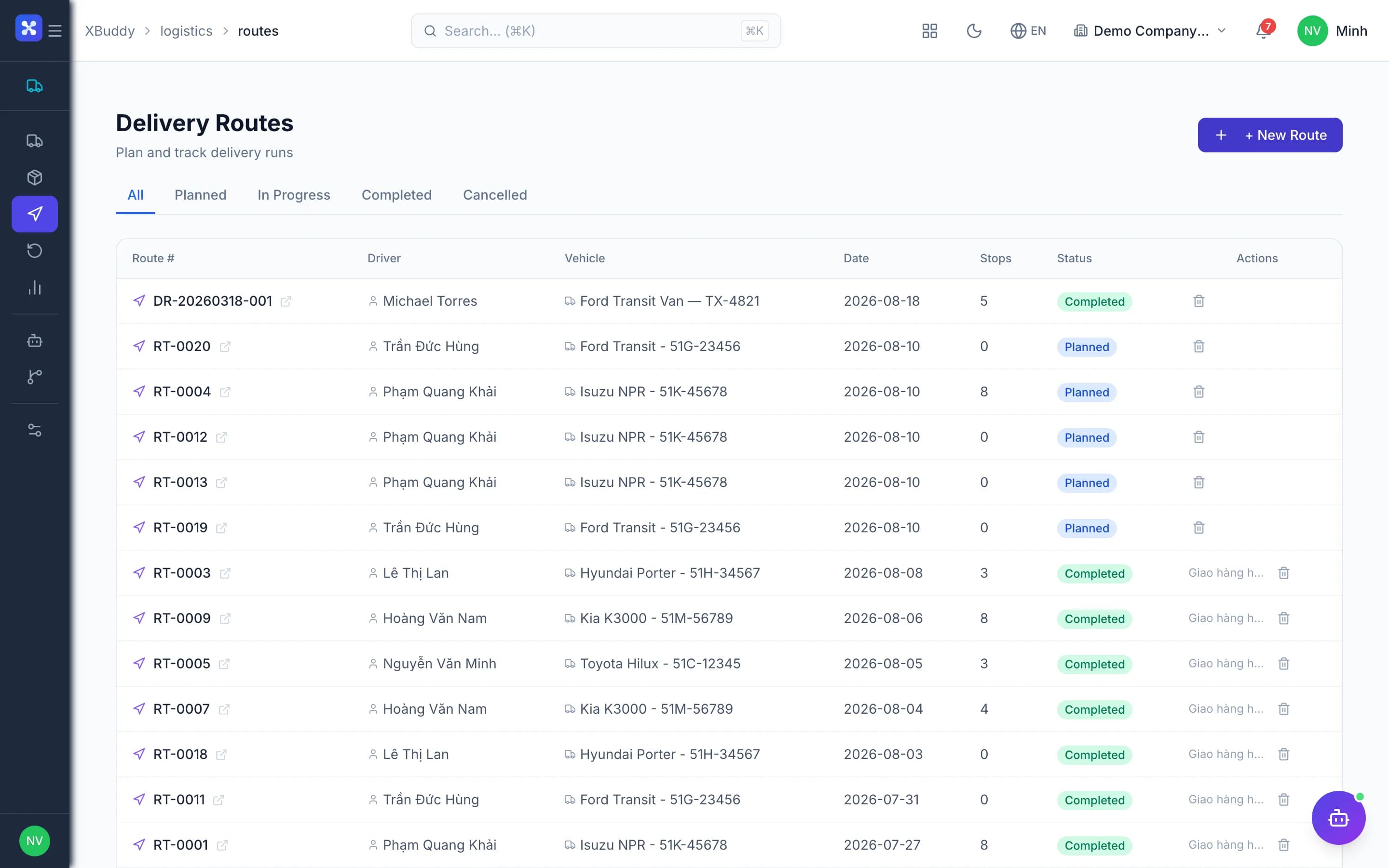
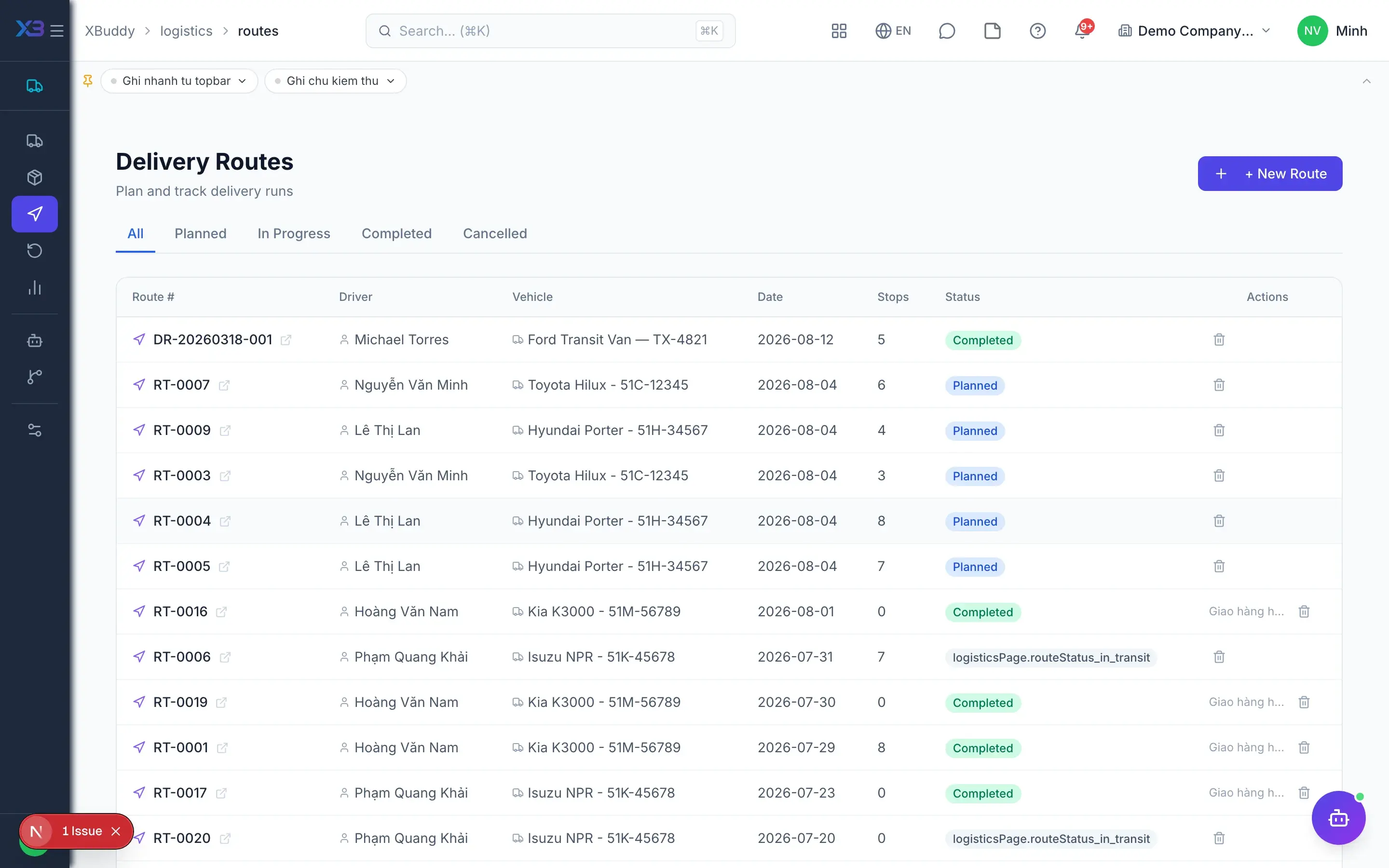
- 3Plan delivery routesShipments heading to the same area are grouped into a route; the dispatcher adds stops, orders them and assigns a carrier or driver. The stop order becomes the day's run sheet; a route in progress cannot be deleted, only moved to its next status.
- Group by area, order stops by hand
- Assign a driver or carrier to the route
- Routes in progress cannot be deleted
- 4Track in transitA shipment moves through dispatched, in transit and out for delivery, and each meaningful milestone is added as a delivery event. When the address is wrong, the goods are refused or damaged, users log an exception with a reason and mark it resolved so the shipment can continue.
- Tracking history in event order
- Log and resolve delivery exceptions
- Final statuses are locked, no going back
- 5Proof of deliveryA successful delivery is only recorded with the recipient's signature; a failed one requires a reason and a photo. Evidence files are saved to Documents before the status changes, so a delivered or failed shipment always carries its proof.
- Delivered needs the recipient's signature
- Failed needs a reason and a photo
- Actual delivery date on the company calendar
- 6ReturnsWhen a customer returns or refuses goods, users create a return request from the original shipment or Sales Order; quantities are checked against the invoice lines. The request goes through approval in Requests & Approvals before receipt is confirmed; cancelling it gives the quantity back.
- Return requests with a document number
- Approval before goods are received back
- Restocking and credit notes done in Inventory and Sales
- 7Carrier performanceLogistics reports show delivery performance, carrier comparison and cost analysis; the overview shows shipments in transit, on-time rate, exceptions and return rate. The Logistics Coordinator assistant flags likely delays and comments on carriers to split next period's volume.
- On-time rate, exceptions, return rate
- Compare carriers on performance and cost
- The assistant analyses only, never dispatches
Every step is a familiar screen
6 real scenarios with how-tos
3 apps in this solution
Assistants that work the process with you
Shipment Assistant
Process-aware agent tracking shipment lifecycle, flagging shipments past their estimated delivery
Inventory Planning Assistant
Inventory planning assistant — goods-issue and stock-request tracking, stockout-risk prediction, smart reorder, dead-stock and expiring-lot alerts, and discrepancy explanations.
Is there a GHN, GHTK or Viettel Post connection?
Not yet. Logistics has no built-in carrier connections, so shipment status is updated by users. On-time rates therefore depend on timely updates.
Is there automatic route optimisation?
Not yet. Routes and stop order are set by the dispatcher; the AI assistant can suggest consolidation but does not reorder stops itself.
Do returns restock automatically?
Not yet. Once a return request is received, the stock keeper restocks in Inventory and the accountant issues a credit note in Sales.
Does closing a route mark shipments delivered?
No. Each shipment only becomes delivered with proof of delivery, so route and shipment statuses need to be kept in step.
Who can see which shipments?
Shipments follow the own, team or all data scope assigned to each user. Routes and reports are filtered by company.
Is Logistics production-ready?
Logistics is an industry add-on in beta. Shipments usually originate in Sales and Inventory, so those flows should be in place first.