Documents

A central document hub where the right people see the right files

Documents with permissions, versions and data-loss controls, attached to business records.

  • Attachments from every app land in the right folder by year
  • Four sensitivity levels, share links with password and expiry
  • Publish policies and know exactly who has read them
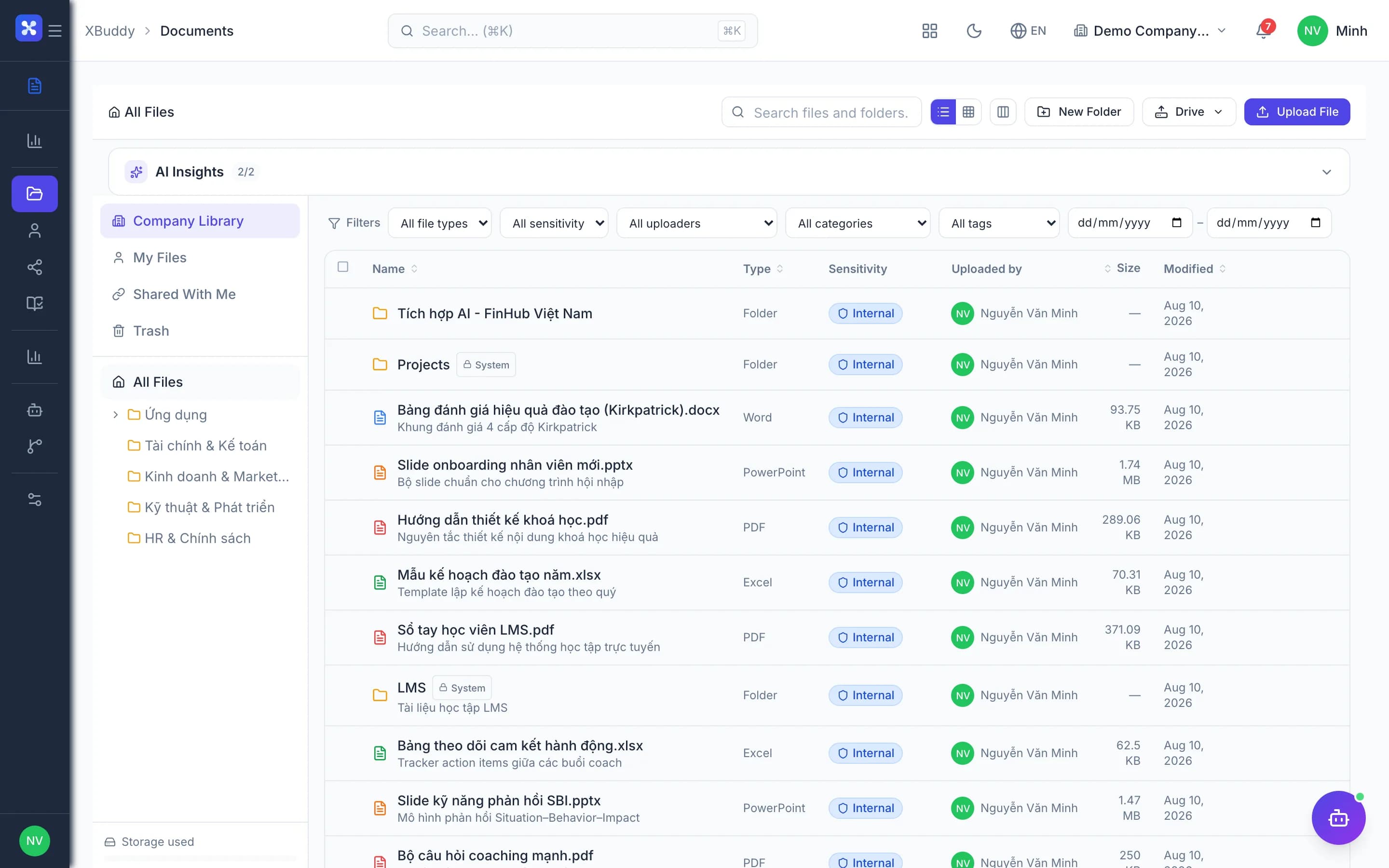
Documents — product screen

Screenshot 1 of 6

22
capabilities
8
advanced & AI features
1
AI assistants on this data
Yes
on mobile

Sound familiar?

The problems this app removes

  • Files scattered across email, shared drives and separate tools
  • Anyone can open sensitive documents
  • Policies get sent out with no idea who has read them
  • Leaked share links that cannot be revoked

Capabilities

22 capabilities in Documents

Catalogued against screens that exist in the product, grouped by the work they do — not a flat marketing list.

Document library

5
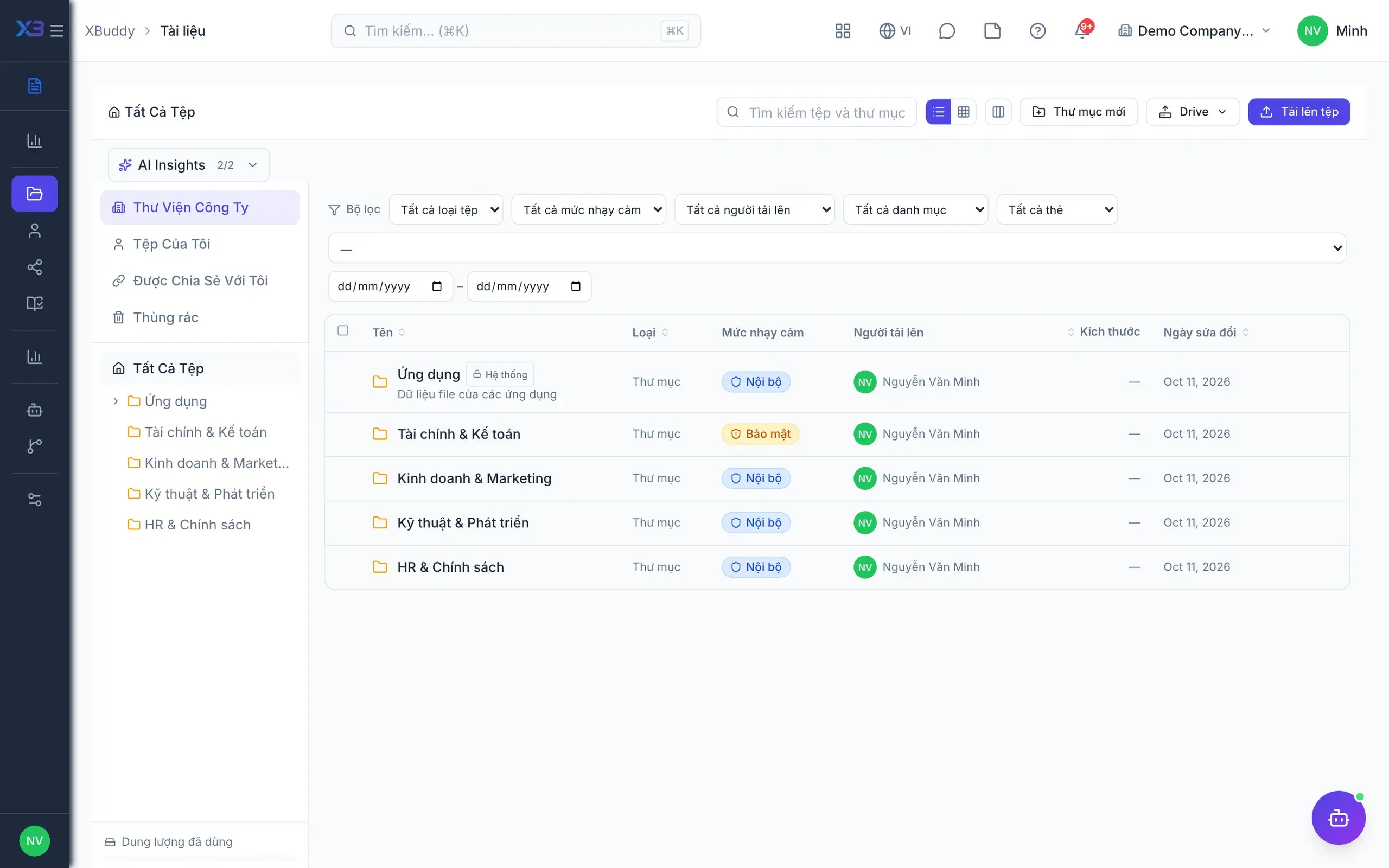
  • Folder tree

    Browse folders, my files and files shared with me in one consistent interface.

  • In-app preview

    Preview PDF, images, CSV, Excel, Word and PowerPoint in the browser without downloading.

  • File versions

    Replacing a file keeps the old version, so you can review or restore it any time.

  • Trash and restore

    Soft delete lets you restore accidental deletions and never lose important documents.

  • Bulk actions

    Tag, categorise and set sensitivity for many files at once; export the list to CSV.

Cross-app attachments

4
  • Auto-filed by appAdvanced

    Attachments on invoices, POs, GRNs and journals land in folders by app, type and year.

  • Records by entity

    Employee, project and asset files are grouped by code and found in seconds.

  • Linked records

    See which documents or business records are currently using each file.

  • Attach existing files

    Pick a file already in the library and attach it to a request without re-uploading.

Security and control

4
  • Four sensitivity levelsAdvanced

    Public, internal, confidential, restricted; inherited from folders, higher levels need special permission.

  • Malware scan on uploadAdvanced

    Every upload is scanned for malware and checked against storage quotas.

  • Watermarking

    Stamp a watermark on documents when viewed or downloaded to deter unauthorised sharing.

  • Block external sharingAdvanced

    Confidential documents cannot get external share links by default.

Sharing and publishing

5
  • Internal sharing

    Share files with specific colleagues and keep viewing rights clearly controlled.

  • Secure public links

    Share links with a password and expiry date that stop working automatically.

  • Publish with read receiptsAdvanced

    Send policies to a recipient list and track who has confirmed reading them.

  • Approval before publishing

    Optionally route a document through approval before releasing it to staff.

  • Send for e-signature

    Pass documents to the Signatures app for electronic signing and keep the signed copy.

Reports and AI

4
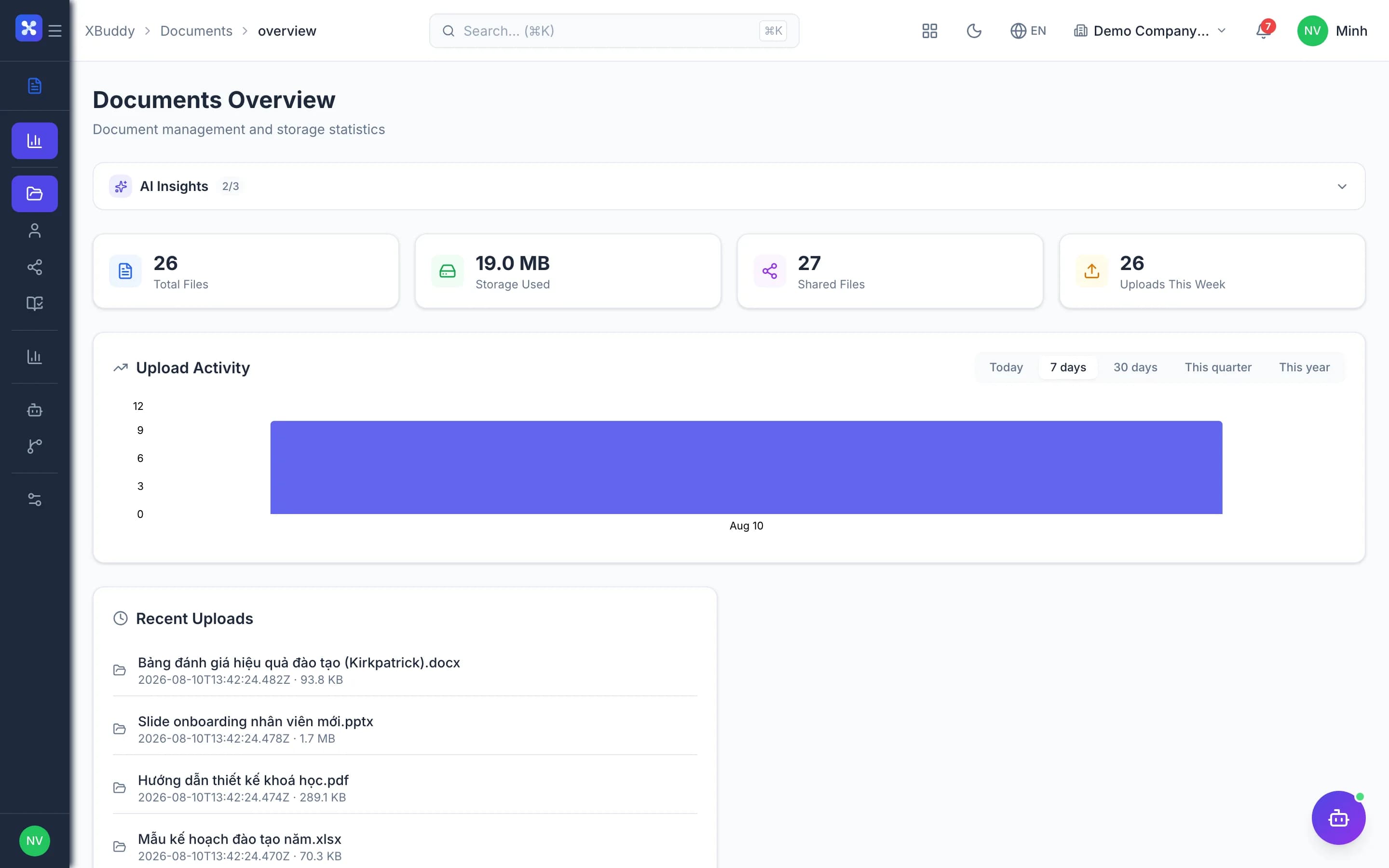
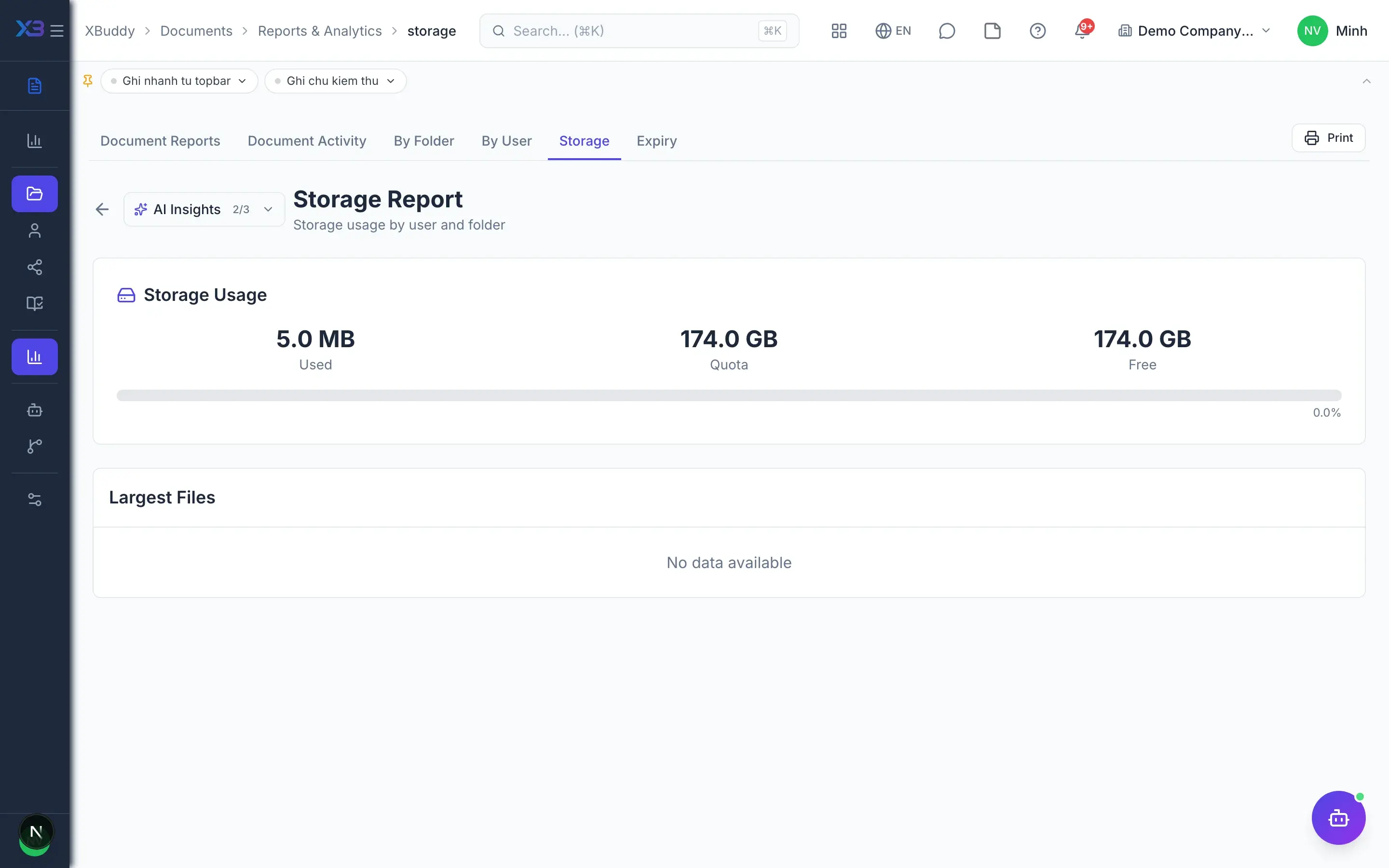
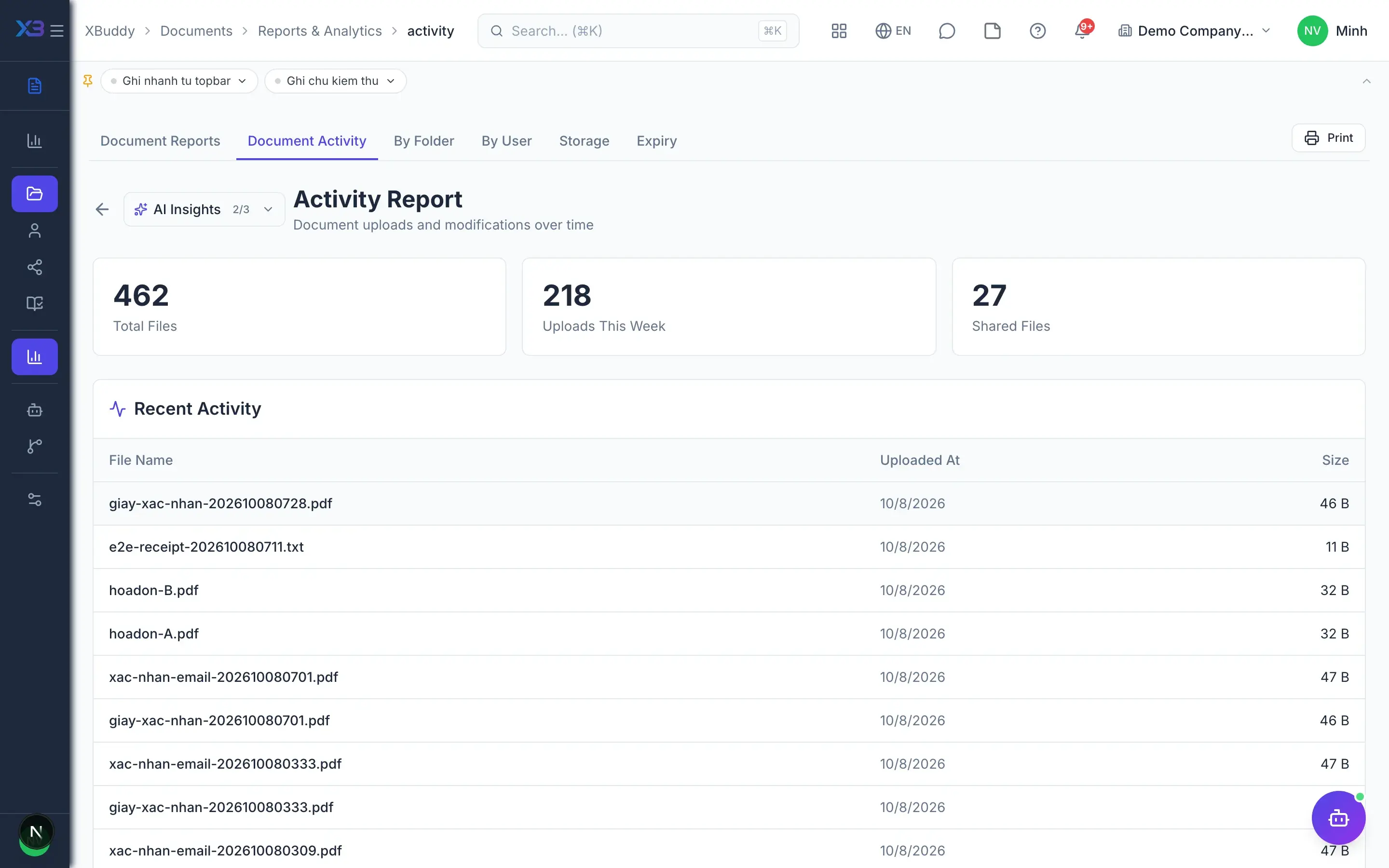
  • Storage and activity

    Reports on storage use and activity by folder and by user.

  • Old version cleanupAdvanced

    Automatically purge hidden versions after a configured number of days to save space.

  • Expiring documentsAI

    An AI assistant flags documents and licences that are about to expire.

  • Import into Knowledge BaseAI

    Turn documents into draft knowledge articles that AI can search.

Real screens

Inside Documents

Documents — product screen
Documents — folder tree with drag-and-drop upload into a selected folder

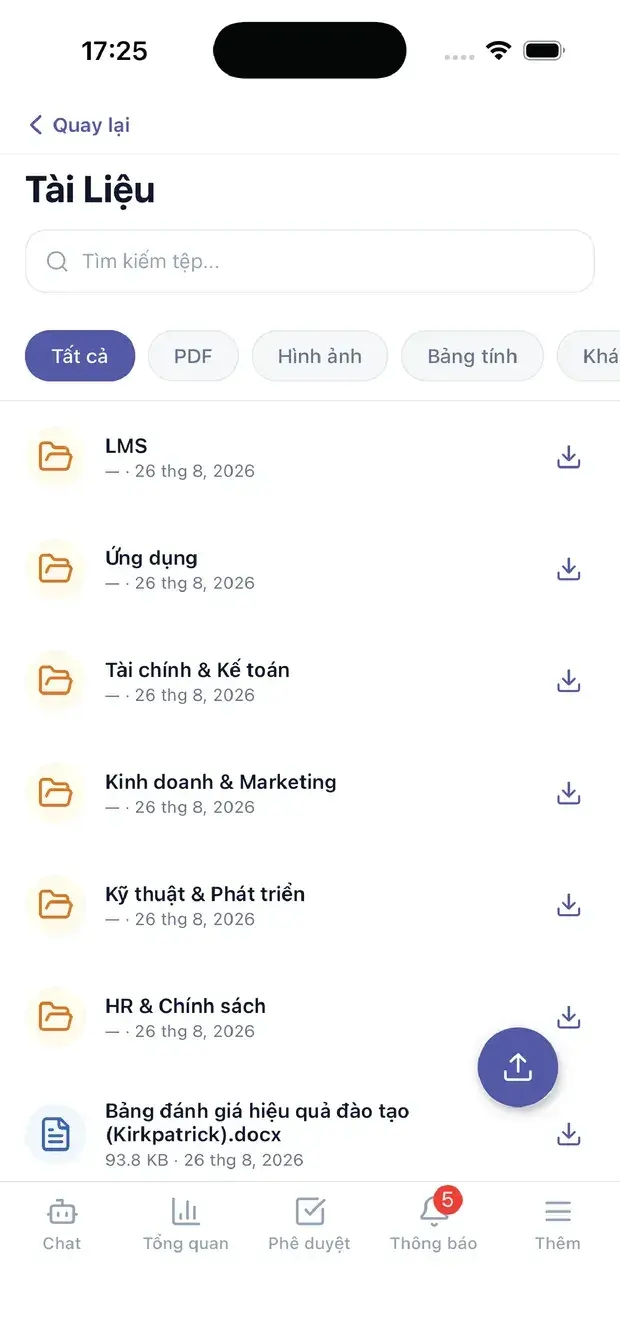
On mobile

Work anywhere with XBuddy Office & XBuddy Work

Company documents

In practice

When you reach for it

1

A confidential file staying inside its boundary

Folder permissions are not enough once a file is attached to a business record.

  1. 1.Every document carries a sensitivity level, inherited from its folder and only ever tightened
  2. 2.Someone without clearance does not see the file, including on a record's attachment panel
  3. 3.Every download records who and when

Four permission axes apply to one file, not just the folder axis.

Assistants on this app

1 assistants work on this data

Each assistant carries its own skills on this app’s data, inside the caller’s permission scope.

Organizes, auto-classifies, and monitors documents across the workspace — flagging expiring and stale files.

Explore skills
  • Document Expiry MonitorMonitors documents with expiry dates and sends proactive alerts before contracts, licenses, and certifications expire.
  • Document Access AuditorAudits live public share links for access that has outlived its purpose: links with no expiry that are old and unused, and links past their own expiry that were never actually revoked. Every revocation is approve-gated.
  • Stale Document DetectorIdentifies documents that have not been updated within a defined period and flags them for review or archival.

FAQ

Frequently asked

Where do attachments from other apps go?

Everything lands in Documents, auto-filed by app, document type and year, so accountants find source documents fast.

How do I limit who sees confidential files?

Set the file or folder to confidential or restricted; only people with the special permission can open it.

Can I view Word or Excel files without downloading?

Yes. PDF, images, CSV, Excel, Word and PowerPoint all preview directly in the app.

See Documents running on your data

A thirty-minute demo focused on the process you are actually stuck on.